ProSnap Download (Latest 2026) - FileCR
Free download ProSnap Latest full version - A sleek, minimal screenshot tool for Windows.
Free download ProSnap Latest full version - A sleek, minimal screenshot tool for Windows.
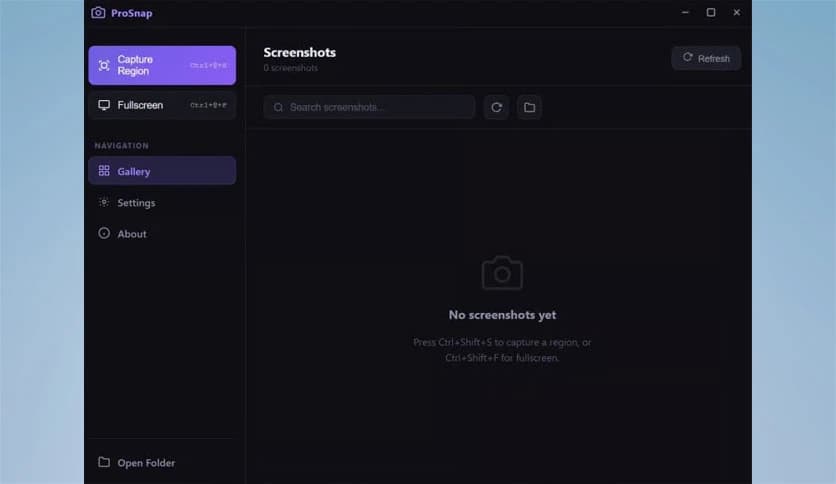
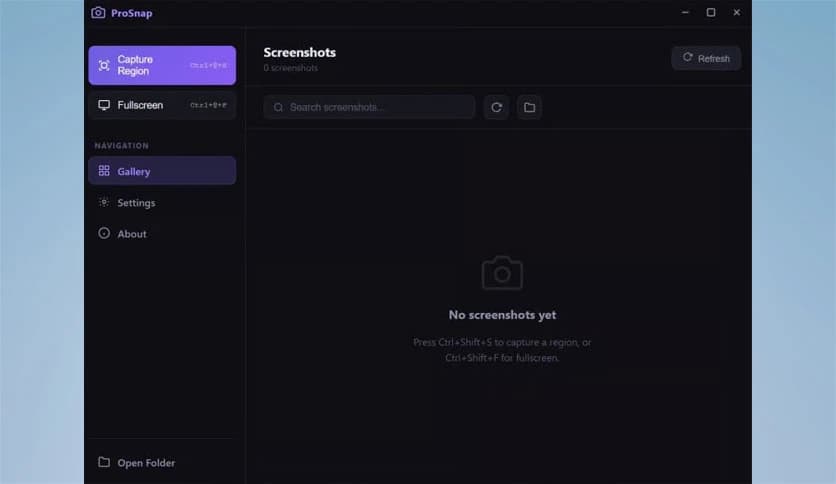
Free Download Payhip ProSnap for Windows PC. It is a sleek, minimal screenshot tool designed to capture, edit, and organize screenshots quickly without slowing your workflow.
It is a lightweight screenshot utility designed for users who want a fast, modern screen capture experience on Windows. Many people rely on screenshots every day for work, tutorials, documentation, or sharing information. Traditional tools often feel outdated, slow, or cluttered with features that most people never use. This solution focuses on simplicity and speed while still offering powerful tools.
The software was built with a clean philosophy in mind. Instead of filling the interface with complicated menus, everything is designed to stay hidden until you need it. Once you trigger a capture, the interface becomes smooth, responsive, and easy to use. It feels less like a traditional tool and more like a natural extension of your workflow.
Whether you are a designer, developer, student, content creator, or remote worker, the software helps you capture information instantly. It removes friction from the screenshot process so you can focus on what really matters.
One of the biggest highlights of the software is its modern interface. Many screenshot tools look like they were built a decade ago. This one follows a clean design approach that feels fresh and modern.
The layout is simple and distraction-free. Instead of overwhelming you with options, the interface only shows what you actually need. Think of it like a tidy workspace where every tool has its own place. The result is a smoother experience that feels natural and efficient.
The dark theme also adds a professional touch. It reduces visual fatigue during long work sessions and blends perfectly with modern Windows setups.
Capturing a specific part of your screen should be fast and accurate. The software makes this process effortless with its live crosshair overlay.
When you activate the capture mode, a precise crosshair appears on the screen. This allows you to select exactly the portion you want to capture. The selection process feels smooth and responsive, almost like drawing a rectangle on paper.
This feature is especially useful when capturing small UI elements, documentation snippets, or sections of a webpage. It gives you full control without any delay.
Sometimes you need to capture the entire screen instantly. Instead of dragging a selection box, you can take a full screenshot with a single click or hotkey.
This is ideal for presentations, tutorials, and quick documentation tasks. The capture happens instantly without interrupting your workflow.
Imagine it like pressing a camera shutter button. One quick action and the entire screen is saved and ready to use.
Capturing a screenshot is only the first step. Most users also need to highlight important parts or add explanations. The built-in annotation tools make this simple.
The software includes a range of editing tools such as arrows, shapes, text boxes, a pen tool, and a highlighter. These features allow you to quickly mark important areas or add notes directly to your screenshots.
For example, if you are creating a tutorial, you can draw arrows to guide the reader’s attention. If you are reporting a bug, you can highlight the exact problem area. These small additions make screenshots much more useful.
One of the most convenient features is the automatic save system. Once a screenshot is captured, it can instantly be saved to a selected folder.
At the same time, the image is automatically copied to the clipboard. This means you can paste it directly into documents, emails, chat apps, or project tools.
This small feature removes extra steps and saves valuable time. Instead of manually saving and copying screenshots, everything happens automatically in the background.
Over time, screenshots can pile up quickly. Finding the right image later can be difficult if everything is scattered across folders.
The built-in gallery solves this problem by organizing all captured images in one place. You can browse through screenshots, preview them instantly, and even search for specific captures.
It works like a small personal library for your screenshots. Instead of digging through dozens of folders, everything is available in one organized view.
The software runs quietly in the system tray, meaning it stays ready without cluttering your desktop.
You can activate captures using global hotkeys from anywhere in Windows. Whether you are browsing the web, writing code, or watching a video, the capture tools are always just one shortcut away.
This approach keeps the workflow smooth and uninterrupted. The tool remains invisible until the moment you need it.
Performance is another area where the software shines. Despite being built with Electron and web technologies, it runs smoothly and remains responsive.
The application focuses on clean code and efficient design rather than heavy frameworks. This keeps the experience fast and reliable.
Instead of slowing down your system, it feels lightweight and stable even during frequent use.
The software fits into many types of workflows. Developers can capture interface bugs, designers can share visual feedback, and writers can document tutorials.
Students can use it for capturing notes or online learning materials. Remote teams can quickly share screenshots during discussions.
Because it combines speed, simplicity, and organization, it adapts easily to different needs.
ProSnap provides a clean, fast, and modern way to capture screenshots on Windows. Instead of cluttered menus and slow workflows, it focuses on speed, precision, and simplicity. With features like region capture, full-screen screenshots, annotation tools, automatic saving, and an organized screenshot gallery, it becomes a powerful everyday companion for anyone who works with digital content.
Leave a comment
Your email address will not be published. Required fields are marked *