Getscreen Download (Latest 2026) - FileCR
Free download Getscreen Latest full version - Instant Browser-Based Remote Desktop Software.
Free download Getscreen Latest full version - Instant Browser-Based Remote Desktop Software.
Free Download Getscreen for Windows PC. It is a fast, simple cloud-based remote desktop solution that lets you connect to computers instantly in your browser.
Remote access tools have become essential in modern work environments, and this software offers a clean and efficient way to manage systems remotely. It allows users to connect to any desktop through a direct browser link without complicated setups or lengthy installations. Whether you are helping a colleague, supporting customers, or managing servers, the tool provides a smooth and reliable remote connection experience.
The platform is designed for individuals, IT professionals, and businesses of all sizes. From small startups to large enterprises, it helps teams stay connected and solve technical issues quickly. The cloud-based nature means there is no need to worry about complicated infrastructure. Everything works directly in the browser, making it accessible anytime, anywhere.
Another important aspect is its flexibility. It offers quick support for one-time connections and permanent access for frequent use. This combination makes it ideal for technical support, remote work, and system management. The interface is also user-friendly, allowing even beginners to connect without confusion.
The software focuses on simplicity and speed. You can connect to a remote computer via a direct link, eliminating the need for complex configuration steps. This makes it perfect for situations where time is critical and immediate assistance is required.
It works directly from a web browser, meaning you do not need to install heavy applications. This reduces setup time and ensures a smoother experience. Even users with limited technical knowledge can easily connect and start working remotely.
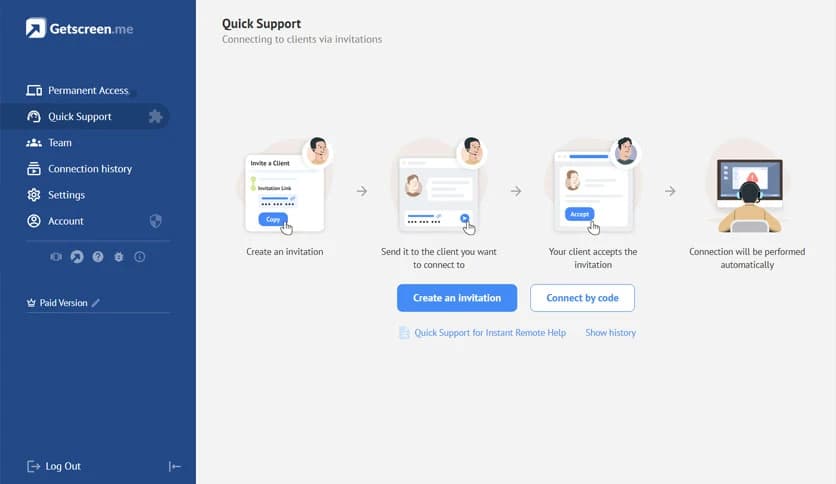
The quick support feature is especially helpful when assisting customers. You can send a link, and once the user clicks it, the connection begins instantly. This streamlined approach saves time and improves productivity.
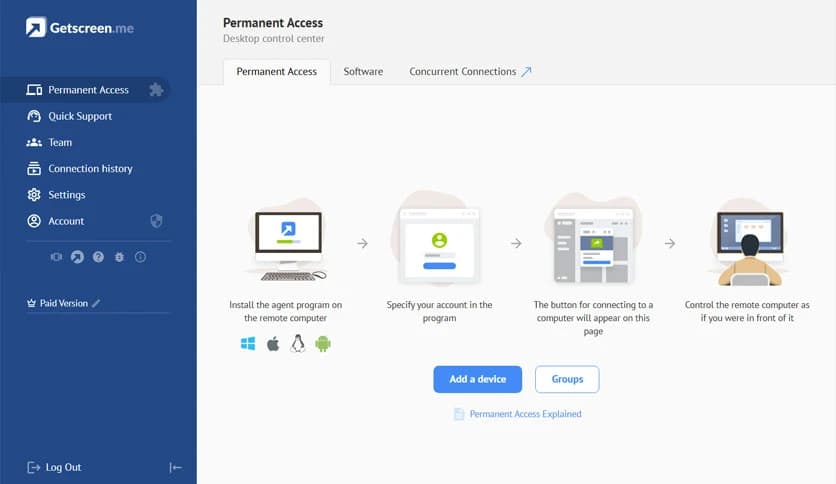
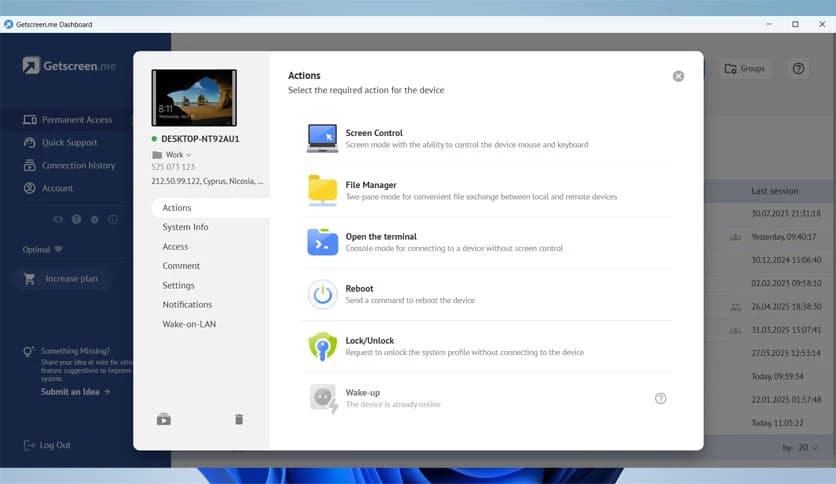
Sometimes remote access is not just a one-time requirement. For businesses and IT teams, regular monitoring and management are essential. This is where permanent access becomes useful. You can configure systems once and connect whenever needed.
This functionality makes remote administration easier. Instead of requesting permission each time, you can log in and perform maintenance, updates, or troubleshooting instantly. It reduces delays and improves workflow efficiency.
Permanent access is also helpful for remote workers. Employees can connect to office computers securely and continue their work from anywhere. This flexibility enhances productivity and supports hybrid work environments.
Communication plays a major role during remote sessions. The built-in chat feature allows you to communicate directly while connected. This removes the need for separate messaging applications.
You can ask questions, guide users, and explain solutions in real time. This interactive approach speeds up and improves troubleshooting. It also helps avoid misunderstandings that often occur with external communication tools.
In addition, the ability to call customers during sessions improves collaboration. This combination of remote access and communication creates a seamless support experience.
For organizations with multiple technicians, team management becomes essential. The tool allows you to create teams and work under a single account. This simplifies collaboration and improves workflow management.
Administrators can assign roles, manage permissions, and monitor activity. This structured approach helps maintain control and ensures security. Teams can also work together on support requests, reducing response time.
This feature is particularly valuable for IT departments and service providers. Multiple technicians can handle tasks efficiently without confusion or overlap.
The cloud-based nature removes the need for complex server setups. Everything runs online, making access possible from any device with a browser. This reduces hardware dependency and simplifies deployment.
Updates are handled automatically, ensuring you always have the latest version. This eliminates manual updates and improves reliability. It also reduces maintenance workload for IT teams.
Cloud functionality also enhances accessibility. You can connect from home, office, or while traveling. This flexibility makes remote management more convenient and efficient.
Security is a critical factor in remote access tools. The software uses secure connections to protect data during remote sessions. This ensures sensitive information remains safe.
Access control options allow administrators to define permissions. This prevents unauthorized access and improves system security. Encryption technology further strengthens protection.
These security features make it suitable for businesses handling sensitive data. It balances accessibility with strong protection.
Ease of use is one of the biggest strengths. The interface is clean, simple, and intuitive. Users can navigate easily without needing technical expertise.
Everything is organized logically, allowing quick access to essential features. This reduces learning time and improves productivity. Even first-time users can start quickly.
The lightweight design also ensures smooth performance. It runs efficiently without slowing down the system.
This remote desktop solution adapts to different scenarios. IT professionals can manage servers, technicians can provide support, and employees can work remotely.
Businesses can also use it for monitoring systems and managing infrastructure. Freelancers and consultants can assist clients from anywhere. This flexibility makes it suitable for many industries.
From troubleshooting to collaboration, the software covers a wide range of needs.
Getscreen provides a fast, reliable, and user-friendly remote desktop experience. It combines quick support, permanent access, team collaboration, and cloud-based convenience into one powerful solution. Whether you are managing systems, assisting customers, or working remotely, it simplifies remote connections and improves productivity. With strong security, easy setup, and flexible features, it stands out as an efficient tool for individuals and businesses alike.
Leave a comment
Your email address will not be published. Required fields are marked *