LICEcap Download (Latest 2026) - FileCR
Free download LICEcap 1.32 Latest full version - Capture an area of your desktop and save it to a GIF.
Free download LICEcap 1.32 Latest full version - Capture an area of your desktop and save it to a GIF.
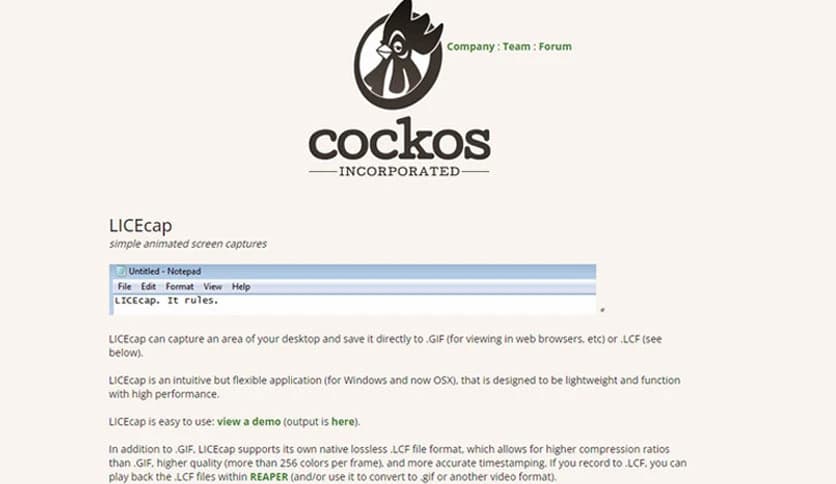
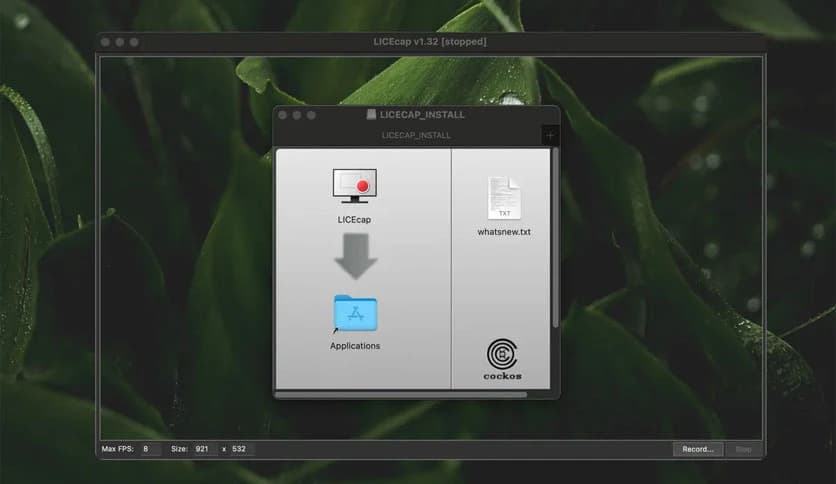
Free Download Cockos LICEcap for Windows PC. It is a lightweight screen recording tool that lets you capture any area of your desktop and save it instantly as a high-quality animated GIF.
It is a simple yet powerful screen capture application designed for users who want fast, clean recordings without heavy software. It focuses on doing one job perfectly: recording a selected area of your screen and saving it directly as a GIF. That means you can instantly create animations for tutorials, bug reports, presentations, or social media posts without needing extra editing tools.
The tool is designed to be lightweight and high-performing. It runs smoothly even on older systems and does not eat up your computer’s resources. Think of it as a pocket-sized camera for your screen. You open it, resize the frame, hit record, and you are ready to go.
One of the best things about this software is its ability to record directly into a GIF file. There is no need to convert videos later. The file you record is the file you share. The GIF format is widely supported across web browsers, email, chat apps, and websites, making sharing extremely easy.
It also supports saving in LCF format. This special format keeps recordings in a native project style, which can be useful if you want more flexibility later. You can think of LCF as a draft copy, while GIF is your final product, ready to publish.
The tool lets you choose exactly which part of your screen to record. You simply resize the capture window to fit the area. It feels like placing a picture frame over your desktop. Only what is inside that frame gets recorded.
Even better, you can move the frame while recording. That means if something important pops up in another part of the screen, you can slide the capture window over without stopping the recording. This flexibility is perfect for dynamic workflows that involve switching between apps.
Recording mistakes happen. Maybe you click the wrong button or need a second to think. Instead of stopping and starting a new file, you can pause and resume the recording. This makes your final GIF cleaner and more professional.
You can even insert optional text messages while pausing. This is useful when creating tutorials. For example, you can pause the recording and add a quick note like “Now click on Settings.” It helps viewers understand what is happening without needing extra editing software.
Speed matters when you are recording your screen. The software includes a global hotkey, Shift+Space, that lets you pause or resume recording instantly. You do not need to click buttons or move your mouse away from your task.
This small feature makes a big difference. It feels natural and smooth. You stay focused on your workflow while controlling the recording in the background. It is like having a remote control for your screen capture.
Not every recording needs a high frame rate. Sometimes you just want to show simple steps, and there is no need for super-smooth motion. The software lets you adjust the maximum recording frame rate. This helps reduce CPU usage and keeps your system running smoothly.
If you have a powerful computer, you can increase the frame rate for smoother animations. If you are working on an older system, you can lower its settings to conserve resources. This balance between quality and performance makes it suitable for many types of users.
The application includes a basic title frame feature. You can add a title at the beginning of your recording, with or without text. This is helpful if you are creating guides, demos, or step-by-step instructions.
A clear title gives context to viewers right away. It is like putting a cover page on your mini video. It makes your GIF look more organized and thoughtful, rather than rushed.
When creating tutorials, it is important for viewers to see where you click. The tool can record mouse button presses, making it easier for others to follow your actions. This adds clarity without extra editing.
It also displays the elapsed time in the recording. This helps you keep track of how long your GIF will be. If you are trying to keep your file small or focused, seeing the time live can help you stop at the right moment.
The software is built to be lightweight. It does not require large installations or heavy background processes. You can launch it quickly and start recording within seconds.
Because it focuses on one main purpose, it performs that task extremely well. It feels fast, clean, and responsive. Instead of overwhelming you with dozens of advanced editing options, it gives you exactly what you need for quick screen animations.
This tool is perfect for developers, designers, teachers, students, and content creators. If you ever need to show how something works on your screen, this can save you time.
It is also great for reporting software bugs. Instead of writing long explanations, you can record the issue and send a GIF. A moving image often explains more than a page of text.
LICEcap is a smart and efficient screen recording solution for anyone who wants to create quick GIFs without a complex setup. It combines simplicity with flexibility, allowing you to capture, pause, adjust, and export recordings in just a few clicks. Whether you are creating tutorials, sharing feedback, or demonstrating features, it offers a smooth and reliable experience that gets the job done without slowing you down.
Leave a comment
Your email address will not be published. Required fields are marked *